

CSV to JetEngine CCT Importer Plugin – A Complete Guide to Importing Custom Content in WordPress
Are you building dynamic websites with JetEngine Custom Content Types (CCTs) and looking for a way to bulk import structured data without writing custom PHP scripts? The CSV to JetEngine CCT Importer plugin is your time-saving solution. In this post, we’ll walk through how this plugin works, how to map fields, and how to use […]
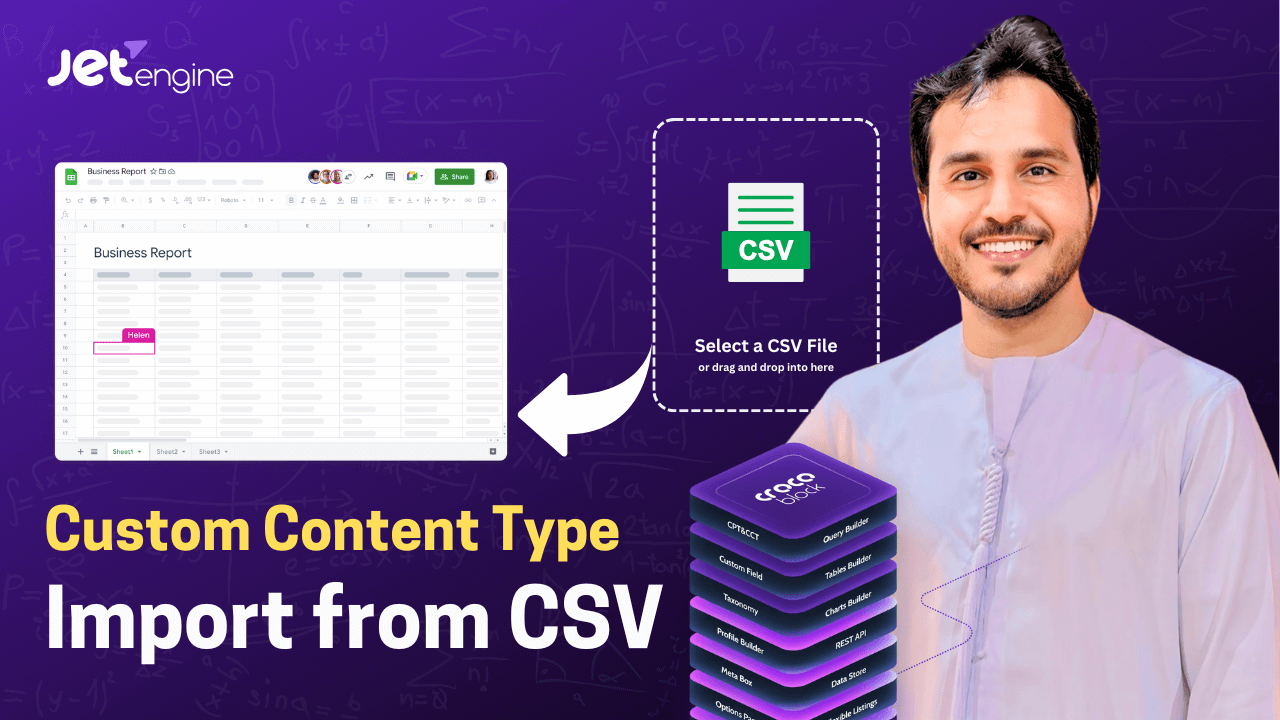
Are you building dynamic websites with JetEngine Custom Content Types (CCTs) and looking for a way to bulk import structured data without writing custom PHP scripts? The CSV to JetEngine CCT Importer plugin is your time-saving solution.
In this post, we’ll walk through how this plugin works, how to map fields, and how to use its powerful frontend shortcode to allow non-technical users to import data easily.
🔧 What is the CSV to JetEngine CCT Importer?
This plugin allows you to upload a CSV file and map its fields directly to your JetEngine CCT table, using either the WordPress admin panel or a frontend interface via shortcode.
🧩 Key Features:
-
✅ Upload CSV and map fields to JetEngine CCT tables
-
✅ Use via frontend or backend
-
✅ Background processing for smooth large file imports
-
✅ Shortcode-powered import UI:
[import_cct_csv] -
✅ Supports headers in the first row
-
✅ Minimal setup, no coding required
🎯 Use Cases
-
Import job listings, projects, or real estate listings into CCT tables
-
Migrate data from spreadsheets or external CRMs
-
Build dynamic dashboards and directories in Elementor using real data
-
Allow clients or non-technical staff to import content via frontend
🛠️ How It Works (Step-by-Step)
🔹 Step 1: Upload CSV & Choose CCT Table
Use the admin panel or embed the shortcode [import_cct_csv] on a frontend page.
You’ll be asked to:
-
Upload your CSV file
-
Select the destination Custom Content Table (CCT) from a dropdown
-
Confirm whether the first row contains headers
🔹 Step 2: Map CSV Columns to Fields
After upload, the plugin presents a mapping interface to assign each CSV column to a corresponding CCT meta field. This ensures the data flows into the correct structure.
🔹 Step 3: Background Import
Once mapped, the data is imported via a background process to avoid timeouts or server strain — perfect for large datasets.
You may see the message:
🕓 “Database update process is running in the background. Taking a while?”
This means the import is processing smoothly without browser locking.
💡 Frontend Shortcode: [import_cct_csv]
You can add this shortcode to any Elementor section or WordPress page, allowing clients, editors, or team members to perform imports without accessing the backend.
Great for membership portals, admin dashboards, or lead intake systems.
❤️ Support the Developer
“If this plugin saved you hours of work, you can support development.”
A PayPal donation button is available directly in the plugin interface for those who appreciate its value.
🔗 Related Tools
-
🧱 JetEngine (Crocoblock) – CCT Manager
👉 Get JetEngine -
🛠️ Elementor – Frontend builder for dynamic data
👉 Download Elementor
🔍 Final Thoughts
The CSV to JetEngine CCT Importer plugin fills a crucial gap for dynamic WordPress sites. If you work with Custom Content Types and need to streamline data entry or onboarding, this plugin will save you hours of manual work — and give clients a no-code interface to manage it all.
🌐 Need Help Building Dynamic Sites?
We specialize in:
-
CCT-based development
-
CRM & automation integration
-
AI-powered content systems
-
Elementor & Crocoblock workflows